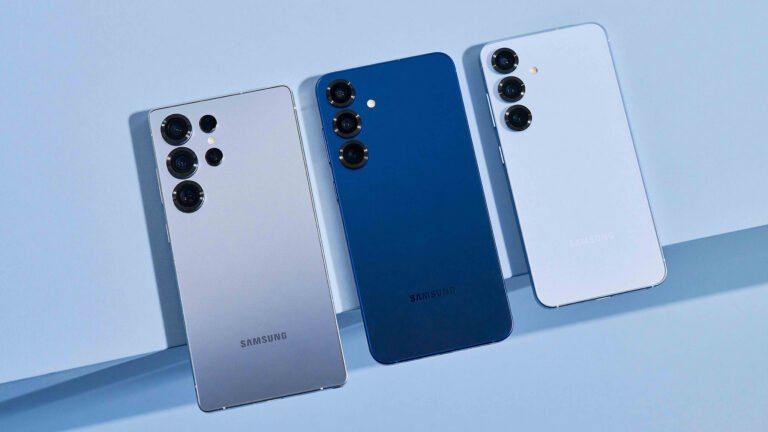
POCO F8 Pro user settings guide: how to get best out of the phone day one

Essential Settings to Unlock the Full Potential of Your POCO F8 Pro
Setting up the POCO F8 Pro on day one is the best moment to optimise its performance, battery life and overall user experience. With powerful hardware and a feature-rich software environment, a few smart adjustments can take the phone from good to exceptional. This guide outlines the most effective settings to tweak as soon as you unbox the device, ensuring you get the best out of it from the start.
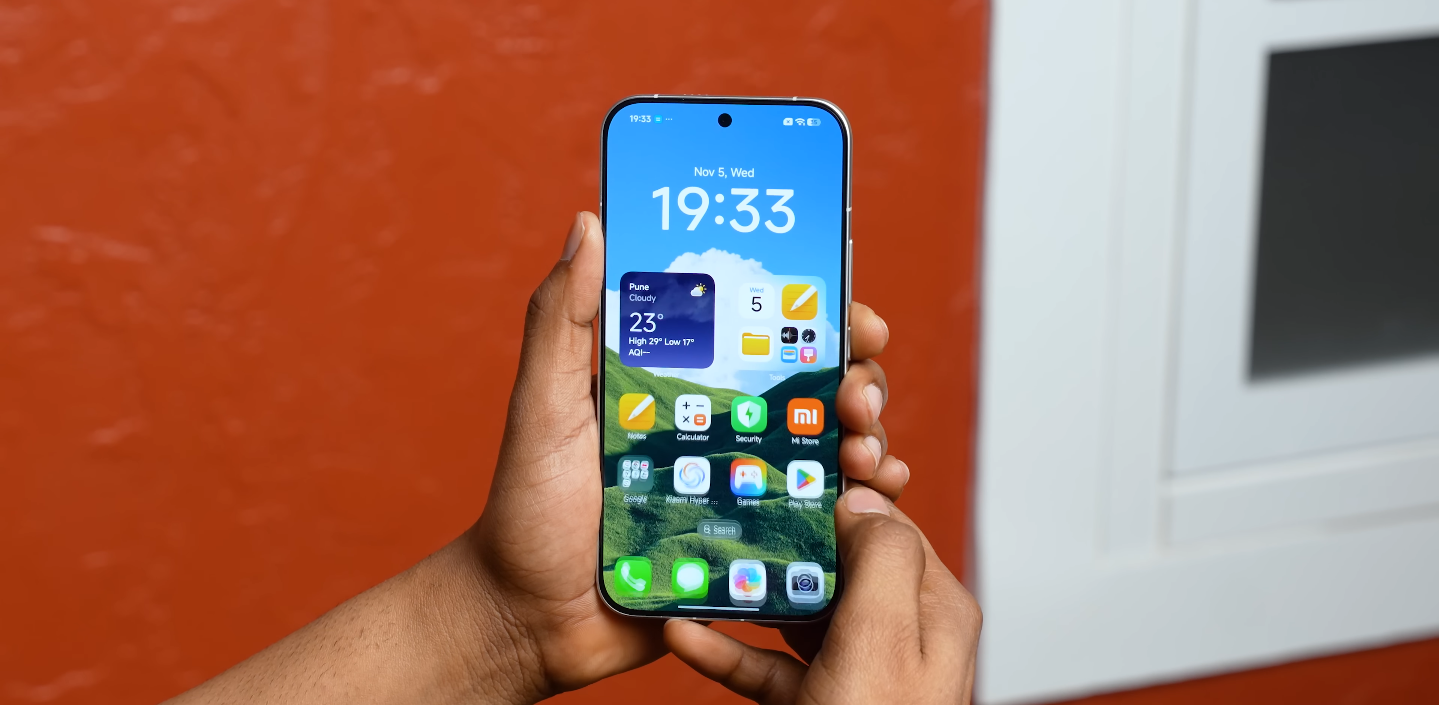
Begin with display settings, as the screen is one of the phone’s standout features. Enabling the highest refresh rate gives you smoother animations and a more responsive feel across apps and games. If the phone offers multiple quality modes, selecting a balanced resolution helps maintain clarity without placing unnecessary strain on the battery. Adjusting brightness to adaptive mode also allows the display to optimise itself according to your surroundings.
Next, explore battery settings to extend day-long endurance. Enabling adaptive battery management helps the software learn your usage patterns and limit energy consumption by background apps. Switching on battery saver for specific times of the day, especially during commute hours or low-power moments, can help you maintain reliability. Reviewing which apps run at startup prevents unnecessary drains before you even begin using the phone.
Charging habits also make a difference. Enabling features like protective charging or slow overnight charging (if available) helps preserve battery health. Fast charging is useful in short bursts, but managing it properly ensures the battery remains strong over the long term. Keeping charge levels between moderate ranges during daily use can offer even better sustainability.
Performance settings are another important area to check. Turning on performance optimisation within the system settings allows the chipset to deliver consistent speed when gaming or multitasking. Clearing or limiting animation scales in developer options can make the interface feel even snappier. Ensuring the phone’s memory extension feature is activated may help with multitasking if you open many apps at once.
The camera system also benefits from early adjustments. Enabling advanced modes such as AI scene detection, stabilisation and enhanced HDR can help achieve better results across different scenarios. Setting up the camera grid and experimenting with Pro or enhanced shooting modes gives you more control from the start. Reviewing video settings to match your preferred resolution and frame rate ensures higher-quality recordings day one.
Connectivity is another essential part of the setup process. Ensuring Wi-Fi optimisation is enabled helps the device maintain stable and efficient connections. Turning on 5G preference where available allows you to enjoy faster speeds, though switching to auto mode can help conserve battery in low-signal areas. Bluetooth, hotspot and NFC settings can also be configured early, depending on how you plan to use the phone.
Security settings should never be overlooked. Setting up fingerprint unlock and facial recognition early ensures secure and fast access to your phone. Activating features like app lock, hidden folders and secure payments provides extra layers of protection. Adjusting permissions for apps prevents unwanted data access and improves both privacy and performance.
Sound and haptic preferences are also worth fine-tuning. Adjusting equaliser settings, if provided, lets you enhance the audio experience for music, videos and calls. Reviewing vibration intensity helps you find a balance between strong alerts and comfortable daily use. Notification sounds and system tones can also be customised to fit your personal preferences.
Finally, personalise the home screen and interface to make the phone more efficient. Setting up your preferred launcher layout, arranging widgets, enabling gesture navigation and creating organised folders all help streamline daily interactions. Removing unused apps and customising quick settings makes the phone feel more responsive and tailored to your needs.
Together, these settings form the foundation for an optimised day-one experience. By balancing performance, battery life, security and personal customisation, you ensure that the POCO F8 Pro operates at its full potential from the very first moment. Whether you prioritise gaming, photography or smooth everyday use, these adjustments will help you get the best out of your new device immediately.